

Key Takeaways
- WordPress to Shopify product migration means moving your WooCommerce catalog (products, variants, images, SKUs, inventory, and SEO data) into Shopify’s product structure. Most of it transfers cleanly; some data needs mapping.
- There are 03 ways to migrate: a manual CSV import for small catalogs, a migration app such as Cart2Cart, or Shopify’s own Store Migration app for medium catalogs, or an expert migration agency for large or complex stores.
- Not everything moves automatically. WooCommerce categories become Shopify collections, custom fields become metafields, and plugin-based features such as bundles or subscriptions need a Shopify app or custom development. Customer passwords never transfer, so customers must reactivate their accounts.
- Expert help reduces risk. iCreative Technologies is an expert WooCommerce to Shopify migration agency in the USA, helping brands move products, customers, orders, and SEO data to Shopify and Shopify Plus with an SEO-first, zero-downtime process.
Introduction
If you’re planning a WordPress product to Shopify migration, your product catalog is the most valuable thing you’ll move. It holds years of product descriptions, images, variants, reviews, and search rankings that bring customers to your store.
Many store owners start on WordPress with WooCommerce because it’s flexible and familiar.
Over time, though, plugin updates, hosting costs, security patches, and slow page speeds make the store harder to run. That’s why more brands are moving to Shopify, a fully hosted platform where the infrastructure is managed for you.
The challenge is Shopify Migration Process that Shopify migration partners handle. A Specialist Shopify Migration Company should be able to move your products without losing data or traffic.
In this guide, you’ll learn exactly how to migrate products from WordPress to Shopify, step by step.
Why Migrate Products From WordPress to Shopify?
The main reason brands move is simple: less time maintaining the store, more time growing it.
Lower maintenance and fewer plugin conflicts
A typical WooCommerce store relies on dozens of plugins. Each update can break another WordPress plugin, your theme, or your checkout. On Shopify, core commerce features are built in, and apps run separately from your store’s code.
Built-in hosting, security, and PCI compliance
With WordPress, you manage hosting, SSL, backups, and security patches yourself. Shopify includes hosting, SSL, and PCI DSS compliance on every plan, so payment security is handled for you.
Faster performance
Shopify runs on a global content delivery network (CDN), which helps pages load quickly for shoppers anywhere. Faster pages improve Core Web Vitals, search rankings, and conversion rates.
Easier scaling with Shopify Plus
If you partnered with the right shopify plus development agency , Shopify Plus adds B2B wholesale features, automation with Shopify Flow, checkout customization, and multiple international storefronts.
| Feature | WordPress + WooCommerce | Shopify |
|---|---|---|
| Hosting | You choose and manage it | Included and managed |
| Security and PCI compliance | Your responsibility | Included |
| Updates | Manual (core, theme, plugins) | Automatic platform updates |
| Core features | Added through plugins | Built in, plus the Shopify App Store |
| Scaling for high traffic | Requires server upgrades | Handled by Shopify |
| Technical skill needed | Moderate to high | Low to moderate |
What Product Data Can You Migrate From WooCommerce to Shopify?
Most core product data moves directly. Some data needs mapping to Shopify’s structure, and a few items don’t transfer at all.
| Product data | Migration status | Notes |
|---|---|---|
| Titles, descriptions, prices | Migrates directly | Check HTML formatting in descriptions |
| SKUs and inventory levels | Migrates directly | Verify stock counts after import |
| Product images | Migrates directly | Images import from public URLs |
| Tags | Migrates directly | Useful for automated collections |
| Variants and attributes | Needs mapping | Shopify allows up to 3 options per product |
| Categories | Needs mapping | Become Shopify collections |
| Custom fields (ACF) | Needs mapping | Become Shopify metafields |
| Product reviews | Needs mapping | Moved with a reviews app |
| SEO titles and meta descriptions | Needs mapping | Map from Yoast SEO or Rank Math fields |
| Bundles, subscriptions, add-ons | Doesn’t transfer directly | Rebuild with a Shopify app |
| Customer passwords | Doesn’t transfer | Customers reactivate their accounts |
How WooCommerce product types map to Shopify?
Migrating products from WordPress to Shopify is not a simple process. Here’s how WordPress maps products to Shopify.
| WooCommerce product type | Shopify equivalent |
|---|---|
| Simple product | Product with a single default variant |
| Variable product | Product with options and variants |
| Grouped product | Separate products, a bundle app, or a collection |
| External/affiliate product | Product with a custom button or link (theme customization) |
Are looking for WooCommerce to Shopify Migration Agency?
iCreative Technologies is a trusted USA-based Shopify migration agency specializing in large-scale, complex B2B and B2C migrations from WooCommerce, Magento, Wix, and other eCommerce platforms.
Shopify variant limits to know before migrating
In October 2025, Shopify raised its variant limit from 100 to 2,048 variants per product on every plan. However, each product is still limited to 3 options, such as size, color, and material.
If a WordPress product uses four or more attributes that create variants, you’ll need to split it into separate products, move extra attributes into metafields, or use a product options app.
Before You Start: WordPress to Shopify Migration Checklist

Good preparation prevents most Shopify migration problems. Complete these steps before you move a single product.
1) Back up your WordPress site
Create a full backup of your WordPress database and files. If anything goes wrong, you can restore your store and try again.
2) Audit and clean up your product catalog
Migration is the best time to remove clutter. Delete duplicate products, discontinued items, and empty categories. Fix missing SKUs, broken images, and inconsistent attribute names, such as “Colour” and “Color” used on different products.
3) Export a full list of your URLs
Use a crawler such as Screaming Frog, or your XML sitemap, to export every product, category, and page URL. You’ll need this list to set up 301 redirects later.
4) Record your current SEO performance
Export your top pages, keywords, and traffic from Google Search Console and Google Analytics 4 (GA4). This baseline shows whether your rankings hold after launch.
5) Set up your Shopify store
Choose your Shopify plan, install a Shopify theme, and configure basic settings such as currency, taxes, and shipping. Products need a working store to import into.
Pre-migration checklist:
- Full WordPress backup completed
- Duplicate and discontinued products removed
- Attribute names standardized
- Full URL list exported
- Rankings and traffic baseline recorded
- Shopify store, theme, and settings configured
3 Ways to Migrate Products From WordPress to Shopify
The right method depends on your catalog size, how complex your products are, and how much time and technical skill you have.
Method 1: Manual CSV export and import
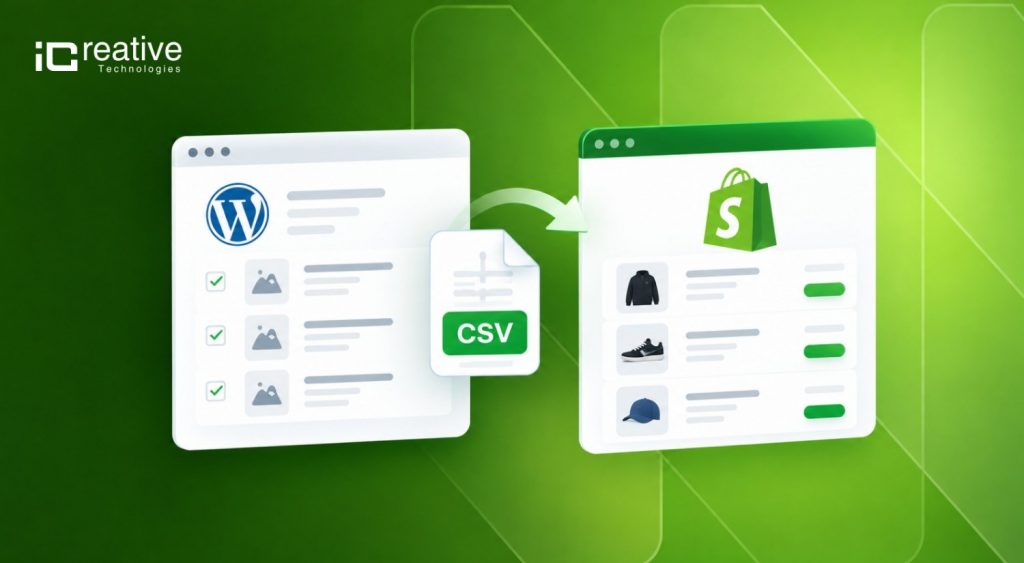
You export products from WordPress as a CSV file, reformat it to match Shopify’s product CSV template, and import it in Shopify Admin. This works well for small catalogs with simple products, but formatting variants and images by hand takes time and is easy to get wrong.
Method 2: Shopify Migration apps

Apps such as Shopify’s Store Migration app , iCreative Technologies’s WooCommerce to Shopify Migration Apps , Magento to Shopify Migration App connect to your WooCommerce store and transfer data automatically.
They handle variants, images, customers, and orders faster than manual work. Most charge based on the number of records you move, and complex custom data may still need manual cleanup.
Method 3: Hiring a Shopify migration expert
An experienced Shopify migration agency plans and runs the whole project: data mapping, custom fields, redirects, testing, and launch. This is the safest option for large catalogs, complex variants, custom functionality, or stores where organic traffic drives a large share of revenue.
Top shopify migration experts in the USA such as iCreative Technologies for mid-market and enterprise brands shopify builds and Zero down time and SEO safe 301 shopify migration, solo media are custom-quoted Shopify development.
| Method | Best for | Time required | Skill level | Main risk |
|---|---|---|---|---|
| Manual CSV | Under 200 simple products | High | Moderate | Formatting errors in variants and images |
| Shopify Migration app | 200 to 5,000 products | Low to moderate | Low to moderate | Custom data and SEO details missed |
| Expert Shopify agency | Large or complex catalogs | Low for your team | Highly Specialized | No Risk |
Step-by-Step: How to Migrate Products From WordPress to Shopify
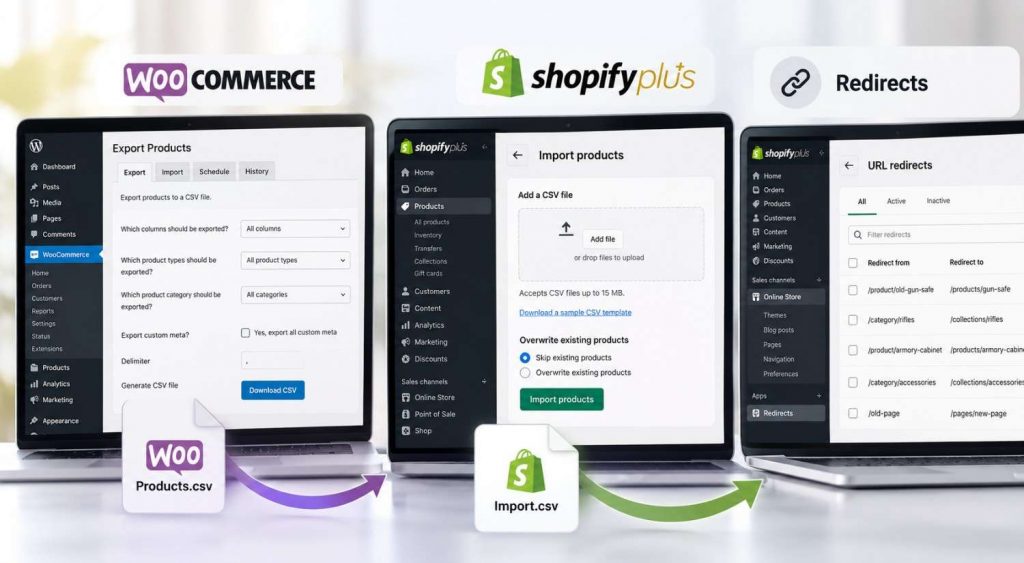
Follow these steps in order. Each one builds on the last, and skipping steps is the most common cause of Shopify migration errors.
Step 1: Export products from WooCommerce
In your WordPress Dashboard, navigate to Products → All Products and click Export.
- Select all columns to ensure complete product data is included.
- Select all product types, including variations.
- If your store uses custom fields, enable “Export custom meta” to include additional product metadata.
- Click Generate CSV and download the exported file.
Tip: Keep the original CSV file as a backup before making any changes to the exported data.
Step 2: Download Shopify’s product CSV template
In Shopify Admin, go to Products > Import and download the sample CSV. Shopify only accepts files that follow this exact structure. The key columns are:
- Handle: the unique ID for each product, which also becomes its URL
- Title and Body (HTML): the product name and description
- Vendor, Type, and Tags: used for filtering and automated collections
- Option1 Name / Option1 Value: variant options such as size or color
- Variant SKU, Variant Price, and Variant Inventory Qty
- Image Src: the public URL of each product image
- SEO Title and SEO Description
Step 3: Map WooCommerce fields to Shopify fields
Match each WooCommerce column to its Shopify equivalent. This mapping decides whether your data lands in the right place.
| WooCommerce field | Shopify field |
|---|---|
| Name | Title |
| Slug | Handle |
| Description | Body (HTML) |
| SKU | Variant SKU |
| Regular price | Variant Compare At Price (if on sale) or Variant Price |
| Sale price | Variant Price |
| Stock | Variant Inventory Qty |
| Categories | Collections (set up after import) |
| Tags | Tags |
| Attribute 1 name / value(s) | Option1 Name / Option1 Value |
| Images | Image Src |
| Yoast or Rank Math SEO title | SEO Title |
| Weight | Variant Grams |
Keep the WooCommerce slug as the Shopify handle wherever possible. This keeps your product URLs close to the originals and makes redirects simpler.
Make sure that during a WooCommerce to Shopify migration, your Shopify or Shopify Plus agency follows SEO best practices.
Step 4: Format variants and attributes
In Shopify’s CSV, each variant gets its own row with the same handle as its parent product. The first row holds the product details, and the following rows hold only variant data. Remember the limit of 3 options per product.
Step 5: Prepare product images
Shopify imports images from public URLs, so your WordPress media library must stay online during the import. Rename files descriptively (for example, gold-hoop-earrings.jpg) and add alt text in the Image Alt Text column for SEO and accessibility.
Step 6: Run a test import
Import 10 to 20 products first, including at least one simple product, one variable product, and one with many images. Check each product in Shopify Admin and on the storefront before continuing.
Step 7: Import the full catalog
Once the test import looks right, import the rest of your products. For large catalogs, split the file into smaller batches so errors are easier to find and fix.
Step 8: Recreate categories as collections
Shopify uses collections instead of categories. Create manual collections for hand-picked products, or automated collections that use rules such as “tag equals summer” to add products automatically.
Step 9: Move custom fields to metafields
If you use Advanced Custom Fields (ACF) or similar plugins for details such as materials, care instructions, or size guides, create matching metafield definitions in Shopify and import the values with Matrixify or a custom script.
Step 10: Migrate product reviews
Export reviews from WooCommerce and import them into a Shopify reviews app such as Judge.me, Yotpo, or Okendo. Reviews add social proof and help keep star ratings in search results.
Step 11: Verify prices, inventory, and product data
Compare a sample of products side by side in both stores. Check prices, sale prices, SKUs, stock levels, variant options, images, and descriptions.
How to Migrate From WordPress to Shopify Without Losing SEO
Your rankings survive a WordPress to Shopify migration when every old URL points to its new home and your on-page SEO data moves with your products.
Understand the URL structure change
Shopify uses fixed URL paths that can’t be changed. That means almost every WooCommerce URL will change, even when the product slug stays the same.
| Page type | WooCommerce URL | Shopify URL |
|---|---|---|
| Product | /product/gold-hoop-earrings/ | /products/gold-hoop-earrings |
| Category | /product-category/earrings/ | /collections/earrings |
| Blog post | /how-to-clean-jewelry/ | /blogs/news/how-to-clean-jewelry |
| Page | /about-us/ | /pages/about-us |
Create a 301 redirect for every URL
A 301 redirect tells Google a page has moved permanently and passes most of its ranking value to the new URL. Using the URL list you exported earlier, map each old URL to its exact new URL.
Then import the full list in Shopify Admin under Content > Menus > URL Redirects (in some versions, Online Store > Navigation), or upload it in bulk as a CSV.
Preserve meta titles, descriptions, and alt text
Map the SEO titles and meta descriptions from Yoast SEO or Rank Math into Shopify’s SEO Title and SEO Description fields. Don’t let your theme regenerate them automatically, since that can wipe out years of optimization. Carry image alt text across as well.
Migrate your blog and pages too
If your WordPress blog brings in organic traffic, move your posts to Shopify’s blog, or keep WordPress running on a subdomain. Either way, redirect any URLs that change.
Migrate your blog and Submit your new sitemap
too
Shopify generates a sitemap automatically at yourstore.com/ sitemap.xml. Submit it in Google Search Console as soon as your store goes live.
Submit your new sitemap
Shopify generates a sitemap automatically at yourstore.com/sitemap.xml. Submit it in Google Search Console as soon as your store goes live.
Testing and Quality Checks After Migration
Test everything before you point your domain to Shopify. Fixing problems before launch costs far less than fixing them after customers and search engines find them.
- Product data: prices, sale prices, SKUs, variants, stock levels, and descriptions match the old store
- Images: every product shows the right images in the right order, with alt text
- Collections: each collection contains the correct products
- Redirects: crawl your old URL list with Screaming Frog and confirm every URL returns a 301 to the right page
- Mobile experience: browse, filter, and add to cart on real phones
- Checkout: place test orders with each payment method and shipping option
- Search Console: sitemap submitted and no new crawl errors
How Long Does a WordPress to Shopify Migration Take?
| Catalog size | Typical timeline |
|---|---|
| Small (under 500 products) | 1 to 2 weeks |
| Medium (500 to 5,000 products) | 2 to 6 weeks |
| Large (5,000+ products) or custom features | 6 to 12+ weeks |
Real Example: WooCommerce to Shopify Product Migration Case Study for SecureIT
- Client: USA’s Leading Gun Storage Manufacturer – SecureIT
- Challenge: Migrate from WooCommerce to Shopify Plus with a heavy product catalogue, complex data, outdated theme, and multiple plugins.
- Solution:
- Structured WooCommerce-to-Shopify Plus migration
- Custom Shopify Plus theme development
- Product, customer, order, and review data migration
- 301 URL redirects for SEO preservation
- Shopify Markets setup
- Discount and coupon migration
- Shop Pay integration
- Analytics and conversion tracking integration
- Results: 85% faster website performance, 65% improved product discovery, 30% improved product engagement, SEO value preserved through 301 redirects, and zero-downtime migration.
Get Your Free Shopify Migration Audit !
Get a detailed review of your current store, migration requirements, SEO risks, and data mapping, so you can move to Shopify with confidence and avoid costly migration issues.
Frequently Asked Questions
Yes. You can export a CSV from WooCommerce and import it into Shopify at no extra cost. You'll need to reformat the file to match Shopify's template, which takes time for larger catalogs.
Not if you plan properly. Set up 301 redirects for every old URL, keep your meta titles and descriptions, and submit your new sitemap. Small, temporary ranking changes are normal in the first few weeks.
Yes. Shopify supports up to 2,048 variants per product, but only 3 options. Products with more than three variant attributes need restructuring before import.
Not through Shopify's standard product CSV. Export your reviews and import them into a Shopify reviews app such as Judge.me, Yotpo, or Okendo.
Yes. You can migrate your posts to Shopify's built-in blog, or keep WordPress on a subdomain such as blog.yourstore.com. Redirect any blog URLs that change.
Popular options include Shopify's Store Migration app, iCreative Technologies WooCommerce to Shopify Migration App, Matrixify, LitExtension, and Cart2Cart. The best choice depends on your catalog size, custom data, and budget.
Yes. Create metafield definitions in Shopify that match your WooCommerce custom fields, then import the values with Matrixify or a custom script.