

Logging into your Shopware admin panel should be simple. But for many store owners, employees, and developers, login issues, confusing URLs, and access problems get in the way of running the business smoothly.
This guide covers everything you need to know about Shopware login. You will learn how to access the backend, set up employee accounts, recover a lost password, and keep your store secure from unauthorized access.
Whether you run a self hosted Shopware store or use Shopware Cloud, this guide will walk you through every part of the login process.
Also Read
- Top 5 Trusted Shopware Agencies in India (2026)for B2B & B2C Brands
- Top 5 Best Shopware Development Services & Certified Solution Provider for 2026
- How to Hire Experienced and Certified Shopware Developer for B2B and B2C eCommerce 2026.
By the end of this article, you will understand how Shopware login works, where to find your backend URL, how employee access is managed, and what steps you can take to keep your store secure.
What is Shopware Login?
Shopware Login is the secure authentication process that allows users to access different areas of the Shopware ecosystem based on their role and permissions. Whether you are a store owner, administrator, developer, employee, or customer, the login system ensures that only authorized users can access the resources and tools relevant to them.
Depending on the type of user, a Shopware login can refer to one of the following access points:
1) Shopware Account
The Shopware Account is the official portal used by merchants, developers, and agencies to manage their Shopware subscriptions, licenses, support requests, extensions, and account settings.
It serves as the central hub for accessing Shopware services and managing your business relationship with the platform.
2) Shopware Administration Panel (Backend)
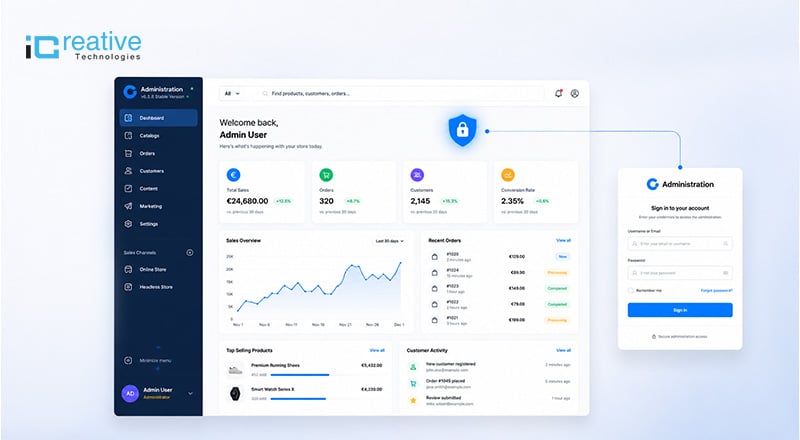
The Shopware Administration Panel, commonly known as the backend, is where store owners and authorized team members manage the day to day operations of an online store.
Through the backend, users can manage products, process orders, update inventory, create marketing campaigns, configure store settings, and monitor business performance. This area is typically accessed by visiting your store URL followed by /admin.
3) Shopware Storefront Login (Frontend)
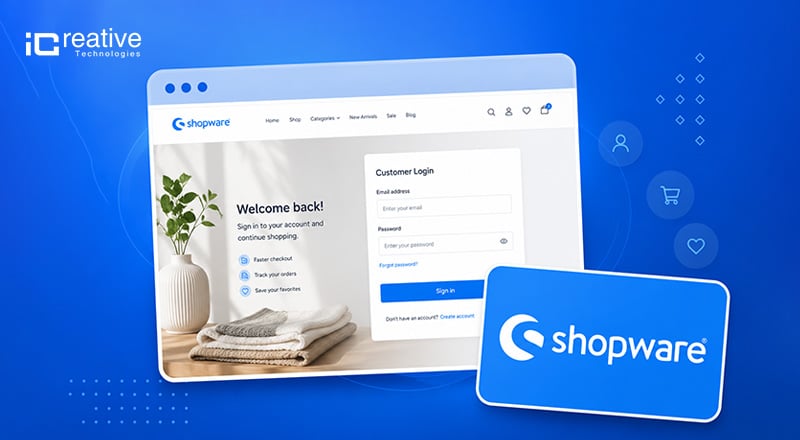
The Storefront Login is designed for customers shopping on a Shopware powered website. It allows users to sign in to their customer accounts, view order history, manage addresses, track shipments, save wishlists, and update personal information.
This login area enhances the customer experience by providing easy access to account related features.
Are you looking for a Shopware 6 certified agency for your store?
iCreative Technologies delivers scalable Shopware stores, website development, migration services, and setup solutions backed by more than 12 years of experience.
Who Uses Shopware Login?
Shopware login is not limited to one type of user. Several groups rely on backend access every day, including:
- Store owners managing overall operations
- Administrators handling configuration and settings
- Employees fulfilling orders and managing inventory
- Developers building and maintaining the store
- Marketing teams running campaigns and content
Each of these roles can have its own login and its own level of access, which we will cover later in this guide.
How to Access the Shopware Login Page
Accessing the Shopware login page is the first step toward managing your online store. Whether you use Shopware Cloud or a self hosted installation, the login process is straightforward once you know where to find the correct access URL.
Shopware 6 Login URL Structure
Most Shopware 6 installations use a standard backend login URL format:
https:// yourdomain. com/admin
Simply replace yourdomain .com with your store’s actual domain name. After entering this URL into your browser, you will be taken directly to the Shopware administration login page where you can enter your credentials.
For example:
https:// www.examplestore. com/admin
Finding Your Shopware Backend Login URL
If you are unsure about your Shopware admin login URL, there are several ways to locate it.
- Check the store setup documentation provided during launch.
- Review emails from your hosting provider or development agency.
- Ask your system administrator for backend access details.
- Check internal documentation if your company manages multiple stores.
Most agencies share the login URL, username, and initial password when the store is first configured.
Accessing Shopware Cloud Login
Shopware Cloud users access their stores through the Shopware Account portal rather than through a traditional server based login URL.
After signing in to your Shopware Account, you can:
- View all connected stores
- Manage subscriptions and licenses
- Access store administration panels
- Manage extensions and service
This centralized approach makes it easier to manage multiple Shopware Cloud stores from a single account.
Accessing Self Hosted Shopware Login
Self hosted Shopware stores use a dedicated backend URL connected directly to your server environment.
This setup provides greater flexibility and control over:
- User permissions
- Security settings
- Login restrictions
- Server configurations
- Authentication methods
Many businesses choose self hosted Shopware because it allows advanced customization and complete control over store operations.
Step by Step Shopware Login Process
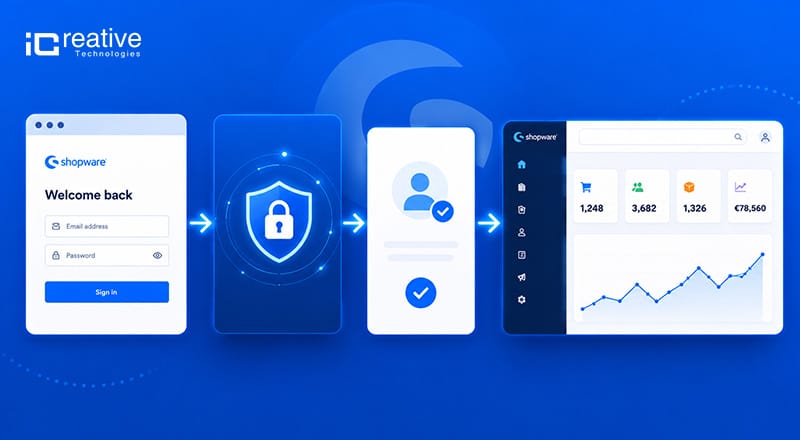
Once you have your login URL, accessing the Shopware administration panel takes only a few minutes.
Step 1: Open the Shopware Login Page
Launch your preferred web browser and enter your Shopware admin URL.
Example:
https://yourdomain. com/admin
You will see the Shopware login screen prompting you to enter your account credentials.
Step 2: Enter Your Login Credentials
Enter your registered email address or username along with your password.
Before clicking the login button, verify that:
- Your email address is entered correctly.
- Your password contains the correct uppercase and lowercase characters.
- There are no accidental spaces before or after your credentials.
Even a small typing mistake can prevent successful login.
Step 3: Complete Two Factor Authentication
If two factor authentication is enabled on your account, Shopware will request an additional verification code after your password has been entered.
The verification code may be generated through:
- An authentication app
- A security token
- A mobile verification method
This additional security layer helps protect your store from unauthorized access.
Step 4: Access the Shopware Admin Dashboard
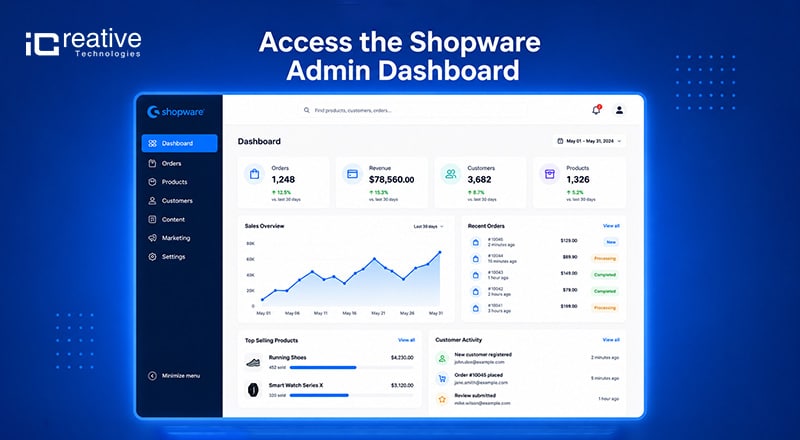
After successful authentication, Shopware will redirect you to the administration dashboard.
Depending on your assigned permissions, you can access areas such as:
- Products
- Orders
- Customers
- Content Management
- Marketing
- Reports and Analytics
- Settings
- Extensions
The dashboard serves as the central control panel for managing your ecommerce business.
Step 5: Complete First Time Account Setup
If this is your first time logging in, Shopware may ask you to complete several account setup tasks.
These may include:
- Creating a new secure password
- Updating profile information
- Configuring notification preferences
- Enabling two factor authentication
- Reviewing account settings
Completing these steps ensures a more secure and personalized experience.
Step 6: Verify User Permissions
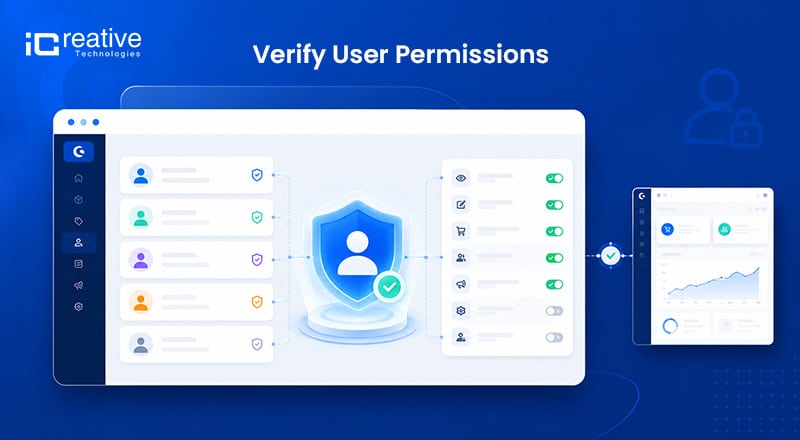
After login, confirm that you have access to the sections required for your role.
For example:
- Store owners typically receive full administrative access.
- Employees may only have access to orders or customer management.
- Marketing teams may only access content and promotional tools.
Step 7: Begin Managing Your Store
Once logged in successfully, you can start managing key aspects of your Shopware store including inventory updates, order fulfillment, customer support activities, marketing campaigns, and store configuration settings.
Hire Dedicated Shopware Specialists at Cost-Effective Pricing!
Get certified Shopware developers on demand for custom development, migrations, integrations, performance optimization, and ongoing support.
Forgot Your Shopware Password? Here’s How to Recover Access for Shopware Login
If you cannot access your Shopware admin account because you forgot your password, follow these simple steps to regain access quickly and securely.
Step 1: Open the Password Reset Page
Visit your Shopware login screen and click the Forgot Password or Reset Password link located below the login form.
Step 2: Enter Your Registered Email Address
Provide the email address associated with your Shopware administrator account and submit the request.
- Use the same email linked to your account.
- Check for spelling mistakes before submitting.
Step 3: Check Your Email Inbox
Shopware will send a password reset email containing a secure recovery link.
- Check your inbox.
- Review your spam or junk folder if the email does not appear within a few minutes.
- Open the reset link before it expires.
Step 4: Create a New Password
Click the recovery link and create a strong new password.
Best practices include:
- At least 12 characters
- Uppercase and lowercase letters
- Numbers
- Special characters
Step 5: Log In With Your New Password
Return to the Shopware login page and sign in using your updated credentials.
Top 5 Common Shopware Login Problems and Solutions
Even with the correct login credentials, users may occasionally encounter issues when accessing the Shopware admin panel. The good news is that most login problems can be resolved quickly with a few simple troubleshooting steps.
Problem 1: Incorrect Username or Password
This is the most common Shopware login issue and is usually caused by typing errors or outdated credentials
How to Fix It
- Verify that your email address or username is correct.
- Ensure Caps Lock is turned off.
- Check for accidental spaces before or after your password.
- Use the password reset option if you cannot remember your credentials.
Problem 2: Shopware Login Page Not Loading
If the admin login page does not open, there may be a connectivity or server related issue.
How to Fix It
- Check your internet connection.
- Confirm you are using the correct Shopware admin URL.
- Try opening the page in a different browser.
- Verify that your hosting server is online.
- Contact your hosting provider if the website is unavailable.
Problem 3: Backend Redirect Loop
A redirect loop occurs when the login page continuously redirects without allowing access to the dashboard.
How to Fix It
- Clear your browser cache and cookies.
- Test the login page in an incognito window.
- Verify the store URL configuration.
- Check SSL settings.
- Ask your developer to review server and Shopware configuration files.
Problem 4: Account Locked After Multiple Failed Login Attempts
Many Shopware stores automatically lock accounts after several unsuccessful login attempts to prevent unauthorized access.
How to Fix It
- Wait for the temporary lock period to expire.
- Reset your password if necessary.
- Contact your administrator to unlock the account.
- Verify that you are using the correct login credentials before trying again.
Problem 5: Browser Cache Issues
Stored browser data can sometimes interfere with the Shopware login process and cause unexpected errors.
How to Fix It
- Clear your browser cache.
- Delete stored cookies.
- Restart your browser.
- Try accessing the login page using a private browsing window.
Shopware Login Security Best Practices to Protect Your Admin Panel
Enable Two Factor Authentication
Adding a second verification step significantly reduces the risk of unauthorized access, even if a password is leaked.
Use Strong Password Policies
Provide the email address associated with your Shopware administrator account and submit the request.
Restrict Backend Access by IP
For an added layer of protection, limit backend access to approved IP addresses or trusted networks.
Regular User Audits
Periodically review who has access to your backend and remove accounts that are no longer needed.
Employee Access Management
Assign permissions based on actual job needs rather than giving broad access by default.
Secure Hosting Environment
A well maintained, updated hosting environment plays a major role in keeping your Shopware login secure from external threats.
Shopware Cloud vs Self Hosted Login: Key Differences Explained
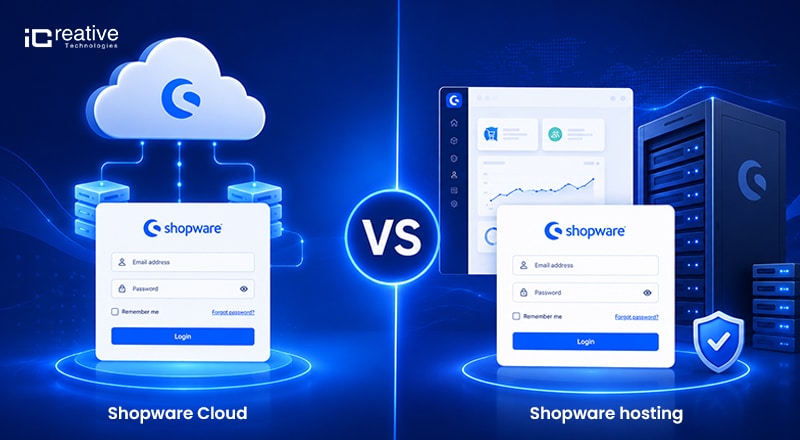
| Feature | Shopware Cloud | Self Hosted Shopware |
|---|---|---|
| Login Method | Cloud Account | Admin URL |
| Access Control | Managed by Platform | Fully Customizable |
| Security Settings | Platform Managed | User Managed |
| Maintenance | Automatic | Manual |
Both options are secure when configured correctly. The right choice depends on how much control your team wants over login settings and server management. for that you need specialist Shopware implementation experts or Shopware development services provider. top rated shopware development companies and services providers such as iCreative Technologies are stand out as best leading Shopware development agency in USA as well as Globally.
Shopware Login FAQs
Most Shopware 6 stores use a URL formatted as yourdomain.com/admin, though this can be customized by your developer.
Visit your store's admin URL and enter your registered credentials to reach the backend dashboard.
It is not recommended. Each employee should have an individual login for better security and accountability.
Use the password reset link on the login page, or contact your administrator if you no longer have access to your registered email.
Common causes include incorrect credentials, cache issues, expired sessions, or temporary account locks after failed attempts.