
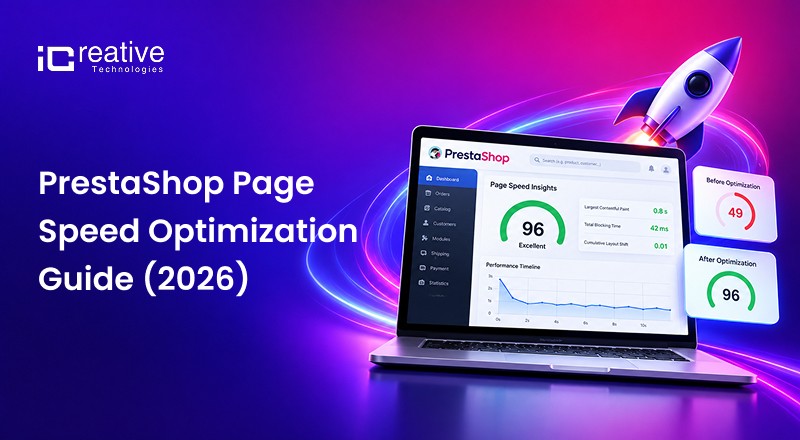
TL;DR
- PrestaShop page speed optimization means reducing your store’s load time by fixing four things: server/hosting configuration, PrestaShop’s built-in Smarty and CCC cache settings, image weight, and Core Web Vitals (LCP, INP, CLS).
- Most default PrestaShop stores installs load slowly because caching is off, images aren’t compressed, and hosting is undersized for the catalog. Fixing the back-office Performance settings plus image and server optimization typically cuts load time by 40–60% without a full redesign.
Key Takeaways
- PrestaShop speed issues usually come from four sources: hosting, cache settings, image weight, and unused modules.
- “Advanced Parameters → Performance” controls Smarty caching, CCC (Combine, Compress, Cache), and debug mode — most stores never touch it after install.
- Core Web Vitals (LCP, INP, CLS) directly affect Google rankings, not just user experience.
- Image optimization (lazy load, responsive sizing, WebP) is usually the single biggest lever on a slow store.
- Old PrestaShop versions (1.6, early 1.7) often need a prestashop migration, not just optimization and it can be migrated using best prestashop migration partners.
What Is PrestaShop Page Speed Optimization?
PrestaShop page speed optimization is the process of reducing how long your store takes to load and become interactive. It covers server response time, front-end asset delivery (CSS, JS, images), and PrestaShop-specific settings like Smarty template caching.
It’s different from generic “website speed optimization” advice because PrestaShop has its own caching engine, its own module architecture, and its own known bottlenecks , so WordPress-style speed tips often don’t translate cleanly.
Why PrestaShop Stores Are Slow by Default?
PrestaShop ships with conservative default settings, not optimized ones. Three defaults cause most of the slowness:
- Debug mode is sometimes left on after development, adding overhead to every page load.
- CCC (Combine, Compress, Cache) is off by default, so CSS and JS load unminified and uncombined.
- Images upload at full size with no automatic compression or modern format (WebP/AVIF) conversion.
Layer in a PrestaShop theme with too many hooks, a handful of heavy modules, and shared hosting, and load times stack up fast for that you need a certified prestashop development agency or Prestashop services providers.
How to Check Your PrestaShop Site Speed First
Before changing anything, get a baseline using:
- Google PageSpeed Insights — shows Core Web Vitals and a prioritized fix list.
- GTmetrix — waterfall charts showing exactly which file is slow.
- Chrome DevTools (Lighthouse tab) — free, built-in, good for quick checks.
PrestaShop Speed Optimization Checklist: Step-by-Step
Step 1: Fix the Performance Settings
Go to Advanced Parameters → Performance in the back office and set:
| Setting | Recommended value |
|---|---|
| Debug mode | No (off) |
| Smarty template cache | Never recompile template files |
| Smarty cache | Enabled |
| Smart cache for CSS | Yes |
| Smart cache for JavaScript | Yes |
| Minify HTML | Yes |
This step alone can cut load times noticeably, since it’s the setting most stores never revisit after launch. Combining CSS into one file and JS into another means the browser makes far fewer requests per page load.
if you need a quick fast loading page of your prestashop stores , some of the best trusted prestashop speed optimization experts that are specilazing in speed optimizaion , improve CRO, minimize down time those agency are iCreative Technologies , Braindev etc.
Get Your FREE PrestaShop Speed Audit!
iCreative Technologies is a specialized and trusted PrestaShop development company in the USA, with 30+ in-house PrestaShop experts and over 11 years of experience in PrestaShop development.
Step 2: Optimize Images (Usually the Biggest Win)
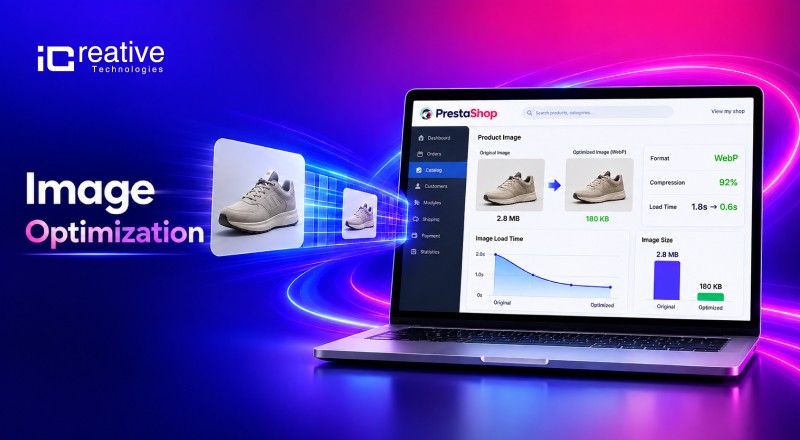
Images are almost always the single largest contributor to a slow PrestaShop store, especially on image-heavy category and product pages.
- Lazy loading — Product images on listing and detail pages load only as the visitor scrolls to them, instead of all loading at once. This cuts initial page weight significantly on category pages.
- Responsive images (DPR or picture tag) — Serve appropriately sized images based on screen size and pixel density, so a phone isn’t downloading a desktop-sized file.
- WebP conversion — Converting product and slider images to WebP typically shrinks file size by 25–35% versus JPEG/PNG with no visible quality loss for most product photography.
- Resize before uploading — Don’t rely on the browser to scale down a 4000px image; resize to the actual display size first.
Step 3: Reduce Module and Hook Bloat
- Audit installed prestashop modules; disable or uninstall anything not actively used.
- Check which modules hook into displayHeader or displayFooter — these run on every single page load and are a common, overlooked slowdown source.
Step 4: Upgrade PHP and Clean the Database
- Run PHP 8.1+ if your PrestaShop version supports it , older PHP versions are measurably slower.
- Clear old cart data, expired specific prices, and connection logs bloated tables slow down queries on category and search pages.
Step 5: Configure Browser Cache Settings
This is the setting most stores never touch after launch, and it’s a meaningful miss.
Get browser caching adds directives to your .htaccess file telling a visitor’s browser how long to hold onto static files before checking the server again. A returning visitor’s second page load can be dramatically faster than their first.
Set different cache durations by file type rather than relying on PrestaShop’s default timeline:
| File type | Typical cache duration |
|---|---|
| Images | Long (weeks to months) |
| CSS | Medium (weeks) |
| JavaScript | Medium (weeks) |
| Fonts | Long (months) |
| Icons | Long (months) |
Returning visitors convert at a higher rate than first-time visitors, so speeding up their repeat experience carries real revenue weight, not just a better Lighthouse score.
Note: Apache’s mod_expires and mod_headers need to be enabled on the server for these directives to take effect check with your host if browser caching doesn’t seem to apply after setup.
Step 6: Add a CDN
Serve images and static assets through a CDN to cut latency for visitors far from your server, especially if you sell across multiple regions or countries.
PrestaShop Website Speed Optimization: Server and Hosting Factors
PrestaShop Software settings only go so far if the server underneath is undersized. Check for:
- Shared hosting with high resource contention — a common ceiling for growing stores.
- No object caching (Redis/Memcached) on high-traffic catalogs.
- HTTP/1.1 instead of HTTP/2 or HTTP/3, which limits how many assets load in parallel.
If your store has more than a few thousand products or gets meaningful traffic, VPS or managed PrestaShop hosting is usually a better foundation than shared hosting, regardless of how well the software is tuned.
What Does PrestaShop Speed Optimization Actually Look Like?
If you use prestashop migration tool in store that hasn’t touched caching or image settings typically sees the biggest jump from a full pass like this often a 40–60% load time reduction, measured before and after with the same tool (PageSpeed Insights or GTmetrix) under the same conditions.
The exact improvement depends on catalog size, current hosting, and how heavy the theme already is. A store on a lightweight theme with decent hosting will see smaller gains than one running a graphics-heavy theme on shared hosting.
When Speed Problems Actually Mean You Need a Migration or Upgrade PrestaShop 1.7 to 8
Sometimes the real issue isn’t settings , it’s the older version of your prestashop store. Stores still running PrestaShop 1.6 or early 1.7 hit a ceiling that no amount of cache tuning fixes, because those versions lack the performance improvements built into PrestaShop 8 and 9.
Signs your eCommerce store has migration problem, not a settings problem:
-
You’re on PrestaShop 1.6.x or earlier.
-
Your theme hasn’t been updated in 3+ years.
-
Core optimization steps (CCC, Smarty cache, PHP upgrade) are already in place and speed still hasn’t improved meaningfully.
In this case, Leading PrestaShop migration experts moving to a current version, clean theme, and modern hosting usually deliver a bigger speed gain than any plugin or setting change.
A good PrestaShop migration tool or PrestaShop migration service agency in usa also carries over products, orders, and SEO URLs without breaking existing rankings, which matters if the store already has organic traffic to protect.
DIY vs. Hiring PrestaShop Optimization Experts
| DIY | Agency/Specialist | |
|---|---|---|
| Best for | Basic settings, image compression | Server tuning, code-level fixes, migrations |
| Time required | Several hours to a few days | Days to weeks, depending on scope |
| Risk | Low, if following documented steps | Low, with an experienced PrestaShop team |
| Typical outcome | Meaningful improvement | Full Core Web Vitals compliance + long-term stability |
Build or Migrate Your PrestaShop Store with iCreative Technologies.
If your store is running on PrestaShop or you have an older PrestaShop version, such as 1.6 or 1.7, and want to migrate to PrestaShop 9 or have any custom PrestaShop store development requirements, iCreative Technologies is one of the most trusted PrestaShop development agencies in the USA and worldwide, known for lightning-fast performance, faster loading times, performance enhancements, and secure PrestaShop development.
Major USA and Germany customers, including Pulasi, No Bananas, and Gais boak, have achieved an average of 85% faster speed, 78% improvement in CRO, and 3.0x average growth in their stores, making iCreative Technologies a specialized PrestaShop agency in the USA.
For a store owner comparing a plugin, a freelancer, and a specialist prestashop development agency, the practical difference shows up at the server and migration layer ,that’s where generic fixes stop working and PrestaShop-specific experience starts to matter.
FAQ for PrestaShop Page Speed Optimization
Enable CCC (Combine, Compress, Cache) and Smarty caching under Advanced Parameters → Performance, then compress and lazy-load images. These two changes together produce the fastest visible improvement with the least risk.
PrestaShop includes native performance settings (Smarty cache, CCC, debug mode) under Advanced Parameters → Performance, but it doesn't include automatic image compression or CDN integration.
Fixing cache settings, images, and hosting together typically improves load time by 40–60% on stores that haven't been optimized before. Results vary based on catalog size, theme, and current hosting.
Optimization is usually enough for stores on PrestaShop 8 or 9. Stores still on 1.6 or early 1.7 typically need a migration, since older versions lack core performance improvements that no plugin can fully replicate.
A single-store setup with a moderate catalog typically takes a few hours to a day, including testing. Multi-store setups or stores with heavy custom theme code take longer.
Artifacts
Content
User Guide of Prestashop Speed Optimization Optimization of the website is very much essential nowadays. Many of the customers bounce back due to the poor performance & slow speed of the website. Hence, the concept of optimization of the web pages becomes very important. Now, provide better expe
pasted