
According to industry data, businesses that automate ERP and eCommerce integrations reduce manual operational work by up to 60% and improve order processing speed by more than 40%.
When your Shopware store runs separately from Odoo ERP, order processing, inventory updates, and customer management become slow and error-prone. Manual data entry increases costs and limits growth, which is where an odoo to shopware connector becomes essential.
An Odoo to Shopware connector bridges the gap between your ERP and eCommerce platform by automatically syncing products, inventory, orders, and customer data in real time or through scheduled updates.
This step-by-step guide is designed for business owners, IT leaders, and eCommerce teams actively searching for a reliable Odoo to Shopware connector. Instead of high-level theory, it focuses on practical installation steps, integration configuration, and proven best practices to help you implement a stable, future-ready Shopware Odoo connector that grows with your business.
What is an Odoo to Shopware Connector?
An Odoo to Shopware connector is a middleware integration that synchronizes products, inventory, orders, customers, and invoices between Odoo ERP and a Shopware 6 store in real time or on scheduled intervals.
It eliminates manual data handling, reduces errors, and enables centralized business operations for scalable eCommerce growth.
Why Integrate Odoo with Shopware?
Integrating Odoo with Shopware is no longer a technical luxury. It is a strategic decision for businesses that want operational efficiency and scalable growth.
Key benefits include:
- Centralized management of products, orders, and customers
- Real-time inventory synchronization across systems
- Faster order processing and fulfillment
- Reduced human errors caused by manual data entry
- Better reporting and decision-making through unified data
An Odoo Shopware connector is especially valuable for B2B companies, D2C brands, wholesalers, and businesses operating across multiple warehouses or regions.
What Data Can Be Synced Using an Odoo to Shopware Connector?
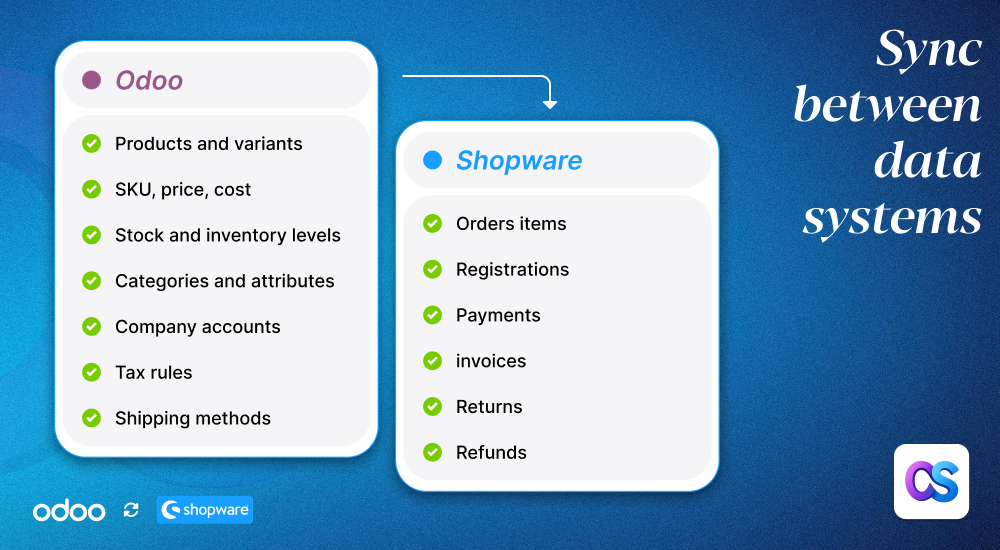
A well-built odoo to shopware connector supports synchronization of all critical eCommerce and ERP data.
- Product Data: Sync product names, descriptions, categories, variants, SKUs, pricing rules, discounts, and media automatically between Odoo and Shopware.
- Inventory and Stock: Maintain real-time stock levels with multi-warehouse inventory tracking, stock adjustments, and reservation management.
- Orders and Transactions: Automatically transfer orders from Shopware to Odoo with complete status updates, invoices, credit notes, and payment and shipping details.
- Customer Data: Keep customer profiles synchronized with billing and shipping addresses, customer groups, and tier-based pricing across both platforms.
Depending on the setup, data can flow one-way or two-way, and synchronization can happen in real time or on scheduled intervals..
Prerequisites Before Installing the Odoo to Shopware Connector
Before starting the installation, it is important to ensure both systems are ready for integration.
You should have:
- A supported version of Odoo installed and accessible
- A Shopware 6 store with API access enabled
- Admin or technical access to both platforms
- Clear understanding of your data structure
- A staging or test environment for initial setup
Skipping these prerequisites often leads to integration issues later, so preparation is key:
Step-by-Step Guide to Setting Up an Odoo to Shopware Connector
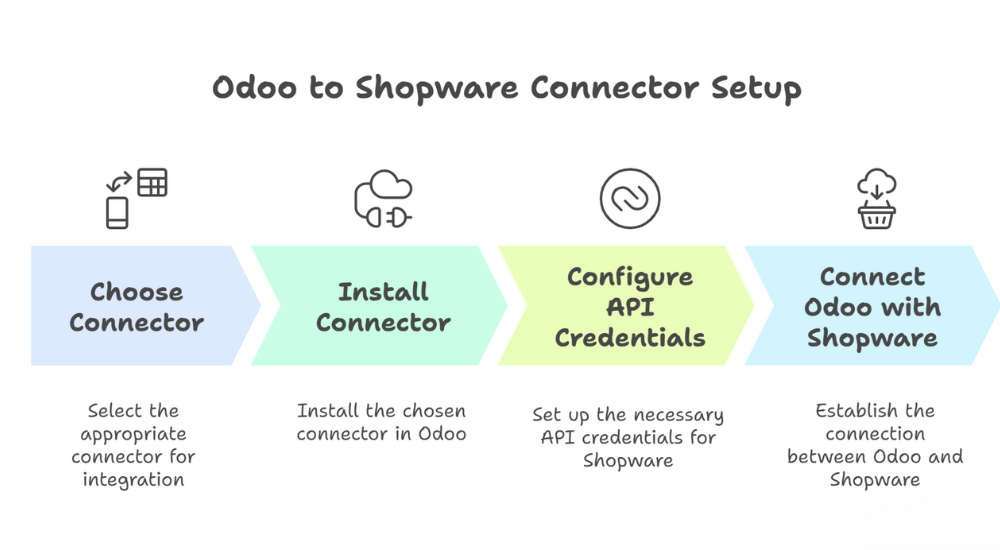
Step 1: Choose the Right Odoo to Shopware Connector
Selecting the correct odoo to shopware connector is the foundation of a successful integration. The right connector depends on your business size, workflows, and scalability needs..
Evaluate the connector based on:
- Compatibility with your Odoo and Shopware versions
- Supported data synchronization features
- Scalability for multi-store or multi-warehouse setups
- Customization flexibility and long-term support.
Step 2: Install the Connector in Odoo
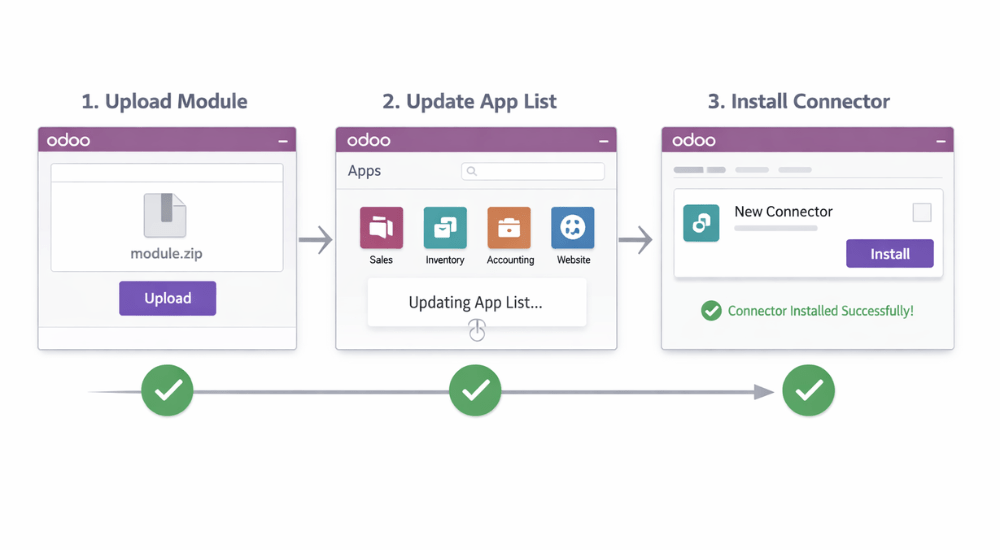
After selecting the connector, install it in your Odoo environment to enable integration.
Installation steps:
- Upload the connector module to the Odoo apps directory
- Update the app list in the Odoo backend
- Install the odoo to shopware connector module
- Verify that all required dependencies are enabled.
A successful installation prepares Odoo for secure data exchange with Shopware.
Step 3: Configure Shopware API Credentials
API credentials allow secure communication between Odoo and Shopware.
Step 4: Connect Odoo with Shopware
Once API credentials are ready, establish the connection from Odoo.
Connection steps:
- Enter the Shopware store URL in Odoo
- Add the generated API keys and secrets
- Test the connector connection
A successful test confirms that the Shopware Odoo connector can read and write data securely between both systems.
Step 5: Monitor, Optimize, and Scale
After going live, continuous monitoring is essential to maintain a stable integration.
How Configure Data Synchronization Works?
After connecting Odoo and Shopware, the next step is defining how data is synchronized between both systems. Proper configuration ensures accuracy, automation, and performance.
Product Synchronization Setup:
- Select the master system for product data: Odoo or Shopware
- Sync product names, SKUs, descriptions, and variants
- Map categories, attributes, and product options
- Configure pricing rules, currencies, and tax settings
- Enable product image and media synchronization
This setup ensures consistent and up-to-date product data across Odoo and Shopware.
Inventory and Stock Synchronization
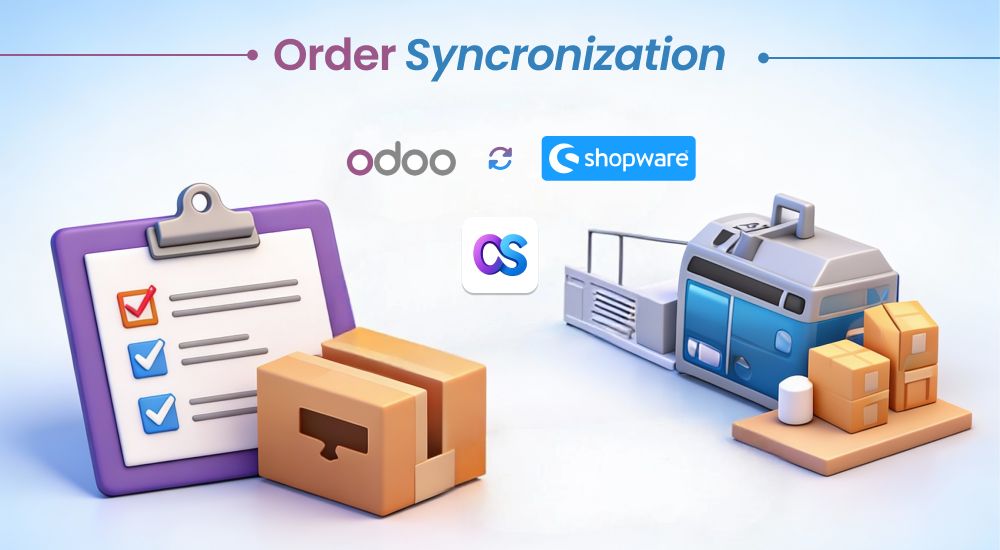
- Enable real-time or scheduled inventory updates
- Map warehouses to Shopware sales channels
- Sync available stock and reserved quantities
- Define stock thresholds to prevent overselling
- Activate low-stock alerts and inventory logs
A correctly configured Shopware Odoo connector keeps inventory levels accurate across all channels.
Odoo to Shopware Connector by iCreative for Seamless Data Sync
Looking for a reliable, production-ready Odoo to Shopware connector that works seamlessly with Shopware 6? The iCreative Odoo to Shopware Connector plugin is built to automate and simplify ERP–eCommerce integration without complexity.
This Shopware Odoo Connector enables smooth synchronization of products, inventory, orders, customers, and pricing between Odoo ERP and your Shopware store. It is designed for growing businesses that need accuracy, speed, and scalability across operations.
Why teams choose the iCreative Shopware Odoo Connector
- One-click sync for products, orders, customers, and inventory
- Built specifically for Shopware 6 and modern Odoo setups
- Secure, API-based connection with high data accuracy
- Ready for growth, from single stores to multichannel setups
- Designed to reduce manual effort and operational errors
Common Integration Challenges and How to Fix Them
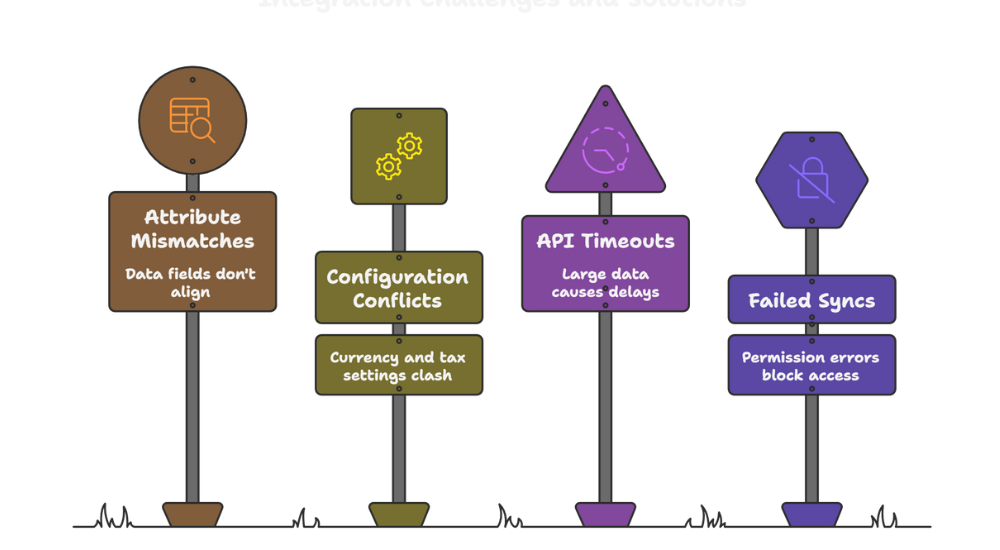
Even with a strong connector, challenges can arise.
Common issues include:
- Product attribute mismatches
- Currency and tax configuration conflicts
- API timeouts due to large data volumes
- Failed syncs caused by permission errors
Most issues can be resolved by:
- Reviewing field mappings carefully
- Ensuring version compatibility
- Monitoring logs and error reports
- Testing changes in a staging environment
Final Thoughts
For businesses serious about scaling, an Odoo Shopware connector is not just an integration. It is a long-term operational advantage.
Implementing an odoo to shopware connector is one of the most effective ways to streamline eCommerce operations. By integrating Odoo ERP with Shopware, businesses gain automation, accuracy, and full control over data.
Until we meet again, happy Shopwaring — and here’s to growing your success with iCreative.🧡