
If you’ve worked with Shopware long enough, you’ve hit the same wall every developer hits: the default entity fields don’t cover everything your store needs. Maybe you need to store a supplier code on a product, attach a tax exemption flag to a customer, or track a custom attribute on orders. That’s exactly what Shopware 6 custom fields are built for.
This guide walks through the complete process — from setting up your Shopware entity definition to making your custom field editable in the administration panel. Whether you’re building your first Shopware plugin or extending an existing one, this is the reference you need.
What Are Shopware 6 Custom Fields?
Before writing any code, it’s worth understanding what custom fields actually are and when to use them.
Shopware 6 Custom Fields are additional, user-defined data fields used to extend the standard database structure of your e-commerce store without modifying the core codebase. They function like flexible “metadata containers” that attach extra information to core entities such as products, categories, orders, or customers.
Prerequisites
- A working Shopware 6 development environment
- A basic Shopware plugin set up and running (the Plugin Base Guide covers this)
- Familiarity with Shopware’s Data Abstraction Layer (DAL)
- An existing custom entity — ideally built following the Add Custom Complex Data guide
#1 Adding Custom Field Support to Your Entity
Shopware Entity Definition — Adding the CustomFields Field
The first step is updating your Shopware entity definition to include the CustomFields DAL field. Open your entity definition file and add it to the FieldCollection.
Here’s what a basic entity definition looks like with custom field support added:
// /src/Core/Content/Example/ExampleDefinition.php
use Shopware\Core\Framework\DataAbstractionLayer\Field\CustomFields;
class ExampleDefinition extends EntityDefinition
{
protected function defineFields(): FieldCollection
{
return new FieldCollection([
(new IdField('id', 'id'))->addFlags(new Required(), new PrimaryKey()),
(new StringField('name', 'name')),
(new StringField('description', 'description')),
(new BoolField('active', 'active')),
new CustomFields()
]);
}
}
The new CustomFields() line at the end is all it takes at the definition level. That one addition tells Shopware this entity supports custom fields.
#2 Adding Custom Field Support to Your Entity
The entity definition change alone isn’t enough — you also need a corresponding custom_fields column in your database table. This is done through a migration.
In your existing migration file, add the custom_fields column as a JSON type with a default of NULL:
// /src/Migration/Migration1611664789Example.php
public function update(Connection $connection): void
{
$sql = <<executeStatement($sql);
}
The column must be JSON type and should default to NULL. Not every entity instance will have custom field data, so NULL is the correct default rather than an empty JSON object.
#3 Adding a Translatable Custom Field — Shopware Entity Extension Approach
If your store operates in multiple languages, you’ll want your custom fields to be translatable. This is where a Shopware entity extension approach using TranslatedField comes in.
In your entity definition, swap CustomFields for a TranslatedField:
// /src/Core/Content/Example/ExampleDefinition.php
use Shopware\Core\Framework\DataAbstractionLayer\Field\TranslatedField;
protected function defineFields(): FieldCollection
{
return new FieldCollection([
(new IdField('id', 'id'))->addFlags(new Required(), new PrimaryKey()),
(new StringField('name', 'name')),
(new StringField('description', 'description')),
(new BoolField('active', 'active')),
new TranslatedField('customFields'),
]);
}
Then in your translation definition, add the CustomFields field:
// ExampleTranslationDefinition.php
use Shopware\Core\Framework\DataAbstractionLayer\Field\CustomFields;
protected function defineFields(): FieldCollection
{
return new FieldCollection([
(new StringField('name', 'name'))->addFlags(new Required()),
new CustomFields()
]);
}
This pattern is the standard Shopware 6 plugin customization approach for translatable entities — the TranslatedField lives in the main definition, and the actual CustomFields field lives in the translation definition.
Part 2: Writing Data to Custom Fields
How to Add Custom Fields in Shopware 6 — Writing Values via the DAL
Once your entity supports custom fields, you can start writing data to them immediately even before defining a formal custom field set. Shopware doesn’t validate custom field data until you define the field in a set, so you can write any valid JSON value directly.
As a leading Shopware development company in Stuttgart, Germany, iCreative Technologies has been a trusted Shopware development partner since 2014, successfully delivering over 280 enterprise-level projects across various industries.
With its Shopware Bronze Partner certification and active contributions to the Shopware community, iCreative Technologies has established itself as a trusted Shopware development agency and certified Shopware solutions provider in Germany. The company is recognized for delivering scalable, high-performance eCommerce solutions tailored to the unique needs of businesses worldwide.
Here’s how to write a custom field value using your entity repository:
$this->swagExampleRepository->upsert([[
'id' => '',
'customFields' => ['swag_example_size' => 15]
]], $context);
This saves the custom field swag_example_size with value 15 to your entity. No prior field definition required at this stage.
You can also write multiple values in one operation:
$this->swagExampleRepository->upsert([[
'id' => '',
'customFields' => ['foo' => 'bar', 'baz' => []]
]], $context);
Both will execute without errors because there’s no validation yet. The data goes straight into the JSON column.
Part 3: Defining Custom Fields for the Administration
Shopware Add Custom Field — Making It Editable in the Admin Panel
Writing data via code is useful for automated processes and Shopware custom business logic development, but in most real-world scenarios your store admin needs to edit these fields through the administration panel. For that, you need to formally define a custom field set.
This is where the custom_field_set.repository comes in. Use its create method to register your field set:
use Shopware\Core\System\CustomField\CustomFieldTypes;
$this->customFieldSetRepository->create([
[
'name' => 'swag_example_set',
'config' => [
'label' => [
'en-GB' => 'English custom field set label',
'de-DE' => 'German custom field set label'
]
],
'customFields' => [
[
'name' => 'swag_example_size',
'type' => CustomFieldTypes::INT,
'config' => [
'label' => [
'en-GB' => 'English custom field label',
'de-DE' => 'German custom field label'
],
'customFieldPosition' => 1
]
]
]
]
], $context);
A few things worth noting here:
- Field type matters. The type value tells the administration what input to render. CustomFieldTypes::INT renders a number input. Use the correct type for your data — the admin will enforce it when writing values.
- Translated labels. Both the field set and individual fields support translated labels via
en-GB,de-DE, and other locale keys. Always add labels — unnamed fields in the admin panel create a poor experience for store managers - Field ordering. The
customFieldPositionproperty controls display order when you have multiple custom fields in one set. Set this deliberately rather than relying on insertion order.
One important note: Custom field sets can be deleted by the shop administrator through the admin panel. Don’t write code that assumes a custom field set will always exist build defensively.
Shopware Custom Rules and Custom Fields — Where They Intersect
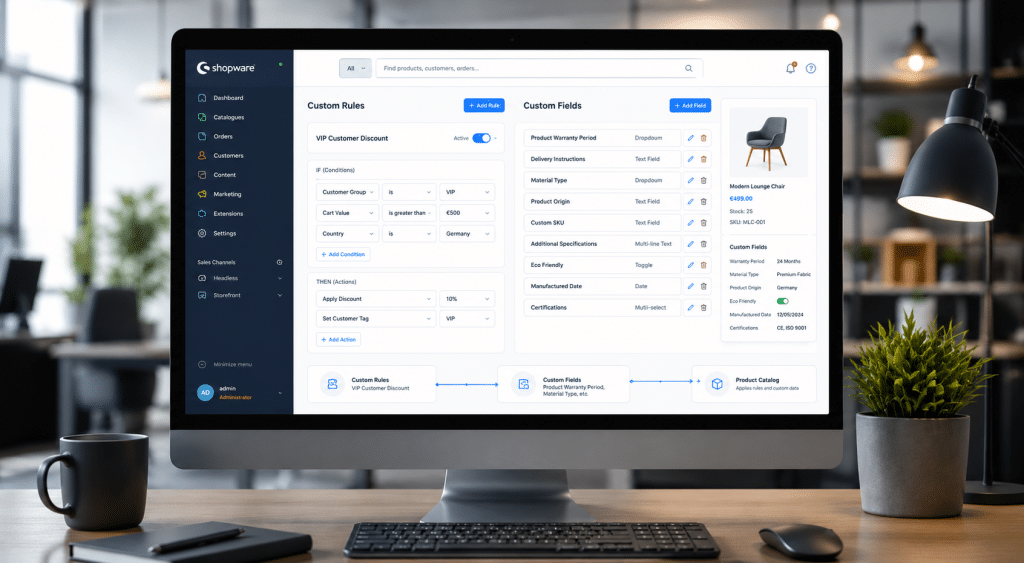
Shopware custom rules are a separate but related concept worth understanding in context. While custom fields store data on entities, custom rules use that data (and other conditions) to drive business logic — pricing rules, shipping restrictions, product visibility, and more.
A common pattern in Shopware plugin development services work is combining the two: store a custom attribute on a customer entity via custom fields, then reference that attribute in a custom rule to control pricing or checkout behavior. The RuleScope gives you access to entity data at rule evaluation time.
public function match(RuleScope $scope): bool
{
// Access customer custom fields here to evaluate your condition
$isCurrentlyLunarEclipse = $this->isCurrentlyLunarEclipse();
if ($this->isLunarEclipse) {
// your logic
}
}
Looking for a Trusted Shopware 6 Partner for Your Store?
Let's shake hands! 🤝iCreative Technologies is your trusted Shopware Bronze Partner and active Shopware Community Member, helping businesses across Germany, the Netherlands, and the Nordic region build, migrate, optimize, and scale their Shopware stores.
Shopware Twig Extension — Displaying Custom Fields on the Storefront
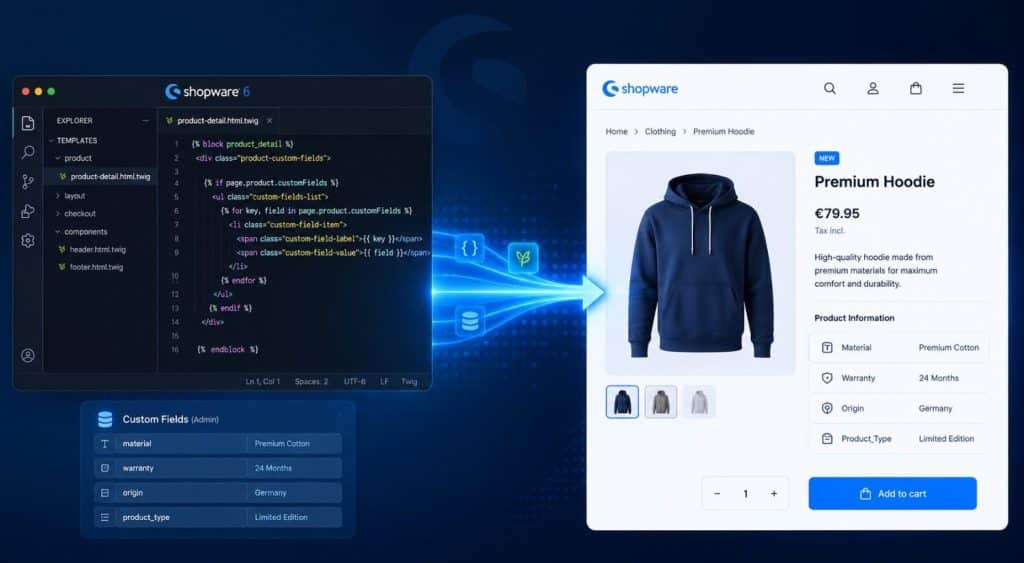
Once your custom field data is saved, you’ll likely want to display it on the storefront. This is where Shopware Twig extension comes in.
Shopware uses Twig as its templating engine, and custom fields stored on entities are accessible in templates via the customFields property. For example, on a product detail page:
{% block page_product_detail_custom %}
{% if page.product.customFields.swag_example_size %}
Size: {{ page.product.customFields.swag_example_size }}
{% endif %}
{% endblock %}
A proper Shopware Twig extension tutorial would cover block overrides in depth, but the key point is that custom field values are directly accessible on the entity object in any template that has access to that entity. Always check for null before outputting — not every entity instance will have the field populated.
For more complex display logic, you can create a Twig extension class within your Shopware plugin that registers custom Twig functions or filters, giving your templates access to processed custom field data rather than raw values.
Shopware 6 Custom Fields Tutorial — Common Mistakes to Avoid
After working through the implementation, here are the issues that come up most often:
- Missing Migration: Adding custom fields without creating the
custom_fieldsJSON column causes runtime errors. - Definition & Migration Sync: Entity definition and database migration must always match.
- Missing Field Set: Custom fields won’t appear in the admin panel unless a custom field set is created.
- Incorrect Field Type: The custom field type must match the stored value (e.g., INT for numbers, STRING for text).
- No Null Checks: Custom field sets can be deleted by admins, so always check if a field exists before accessing it.
- Admin Editing Issue: Without a proper field set definition, custom fields can only be managed via code.

When Custom Fields Aren’t Enough — Shopware Entity Extension
Custom fields handle scalar data well, but they have limits. If you need to:
- Create associations between entities (product to supplier, order to external reference)
- Store structured relational data with its own query and filter capabilities
- Build complex nested data structures
..then you need a full Shopware entity extension rather than custom fields. The entity extension approach involves creating new entity definitions, new database tables, and registering the association properly in Shopware’s DAL. It’s more work, but it’s the right architecture for complex data requirements.
Most Shopware extension development company work involves knowing which approach fits the requirement — custom fields for simple attribute storage, entity extensions for relational data.
Final Word
Shopware 6 custom fields are one of the most practical tools in Shopware plugin development. They’re fast to implement, flexible enough for most store customization needs, and integrate cleanly with both the DAL and the administration panel.
If your store needs more complex Shopware 6 plugin customization , iCreative Technologies offers professional Shopware plugin development services built to Shopware’s standards. Get in touch to discuss your project.