


In Shopware 6, custom fields allow users to extend the functionality of products, categories, and other entities. Among these, handling the media module within custom fields is essential for storing and displaying images dynamically.
This feature was introduced in Shopware 6.1.1, making it easier to retrieve and display media directly in a Twig template. Below, we’ll explore how to fetch both single and multiple media files from Shopware 6 custom fields and display them seamlessly.
Accessing Media from Custom Fields in Shopware 6
While Creating the custom field as per, the below image,
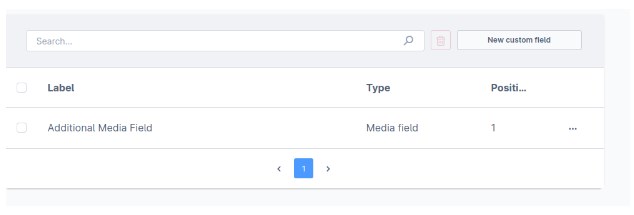
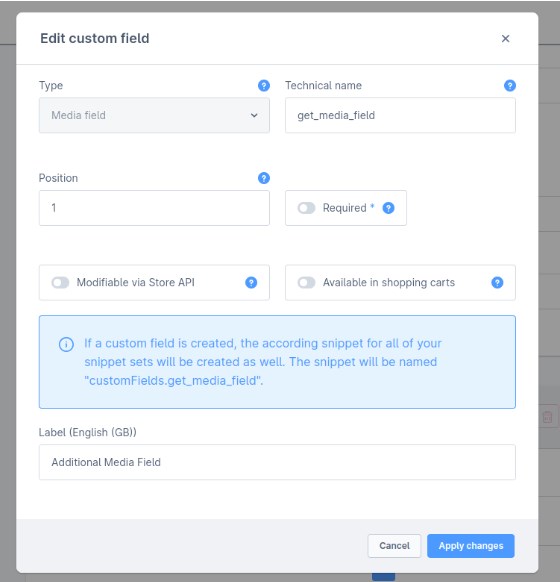
Custom field’s Technical name is key to get custom field value.
For Access Single media:
To access a single media file stored in custom fields, follow these steps:
					{# simplify to access media id from custom field#}
{% set customFieldMediaId = page.product.translated.customFields.get_media_field %}

{# search media from media id#}
{% set mediaCollection = searchMedia([customFieldMediaId], context.context) %}

{# extract media object #}
{% set mediaObject = mediaCollection.get(customFieldMediaId) %}
For Access Multiple Media Files:
For multiple media files, you need to store and merge multiple media IDs from Shopware 6 custom fields:
					{# initial array #}
	{% set customFieldMediaIds = [] %}

Assume we have 2 media, then,
{# merge that all media field through the loop or other way #}
{% set customFieldMediaIds = customFieldMediaIds|merge([page.product.translated.customFields.get_media_field1]) %}
{% set customFieldMediaIds =
customFieldMediaIds|merge([page.product.translated.customFields.get_media_field2]) %}

{# search media from media ids #}
{% set mediaCollection = searchMedia(customFieldMediaIds, context.context) %}

{# fetch media from the media collection based on their id or individually through the loop#}
{% set mediaObject =
	mediaCollection.get(page.product.translated.customFields.get_media_field1) %}
As you can see from the example, the code is simply inserted into a Twig template. This means you can also use it in your plugin without needing any additional code in the plugin.
Displaying Media in Twig
- Once the media object is retrieved, it can be displayed in two ways:
1. Using the <img> HTML Tag
<img decoding="async" src="{{ mediaObject.url }}" alt="{{ mediaObject.alt }}" data-lazy-src="//%20mediaObject.url%20"><noscript><img decoding="async" src="{{ mediaObject.url }}" alt="{{ mediaObject.alt }}"></noscript>
2. Using sw_thumbnails Twig Function
{% sw_thumbnails 'my-mediaObject-thumbnails' with {media: mediaObject} %}
This way we can easily get custom field media and display the image in a twig file.
Conclusion
The media module in Shopware 6 custom fields provides a seamless way to manage and display product images dynamically. By retrieving media IDs and fetching their respective objects, developers can display images effortlessly using Twig templates. This method is efficient and does not require additional plugin code, making it a flexible solution for any Shopware 6 store.


